Auto-Linking
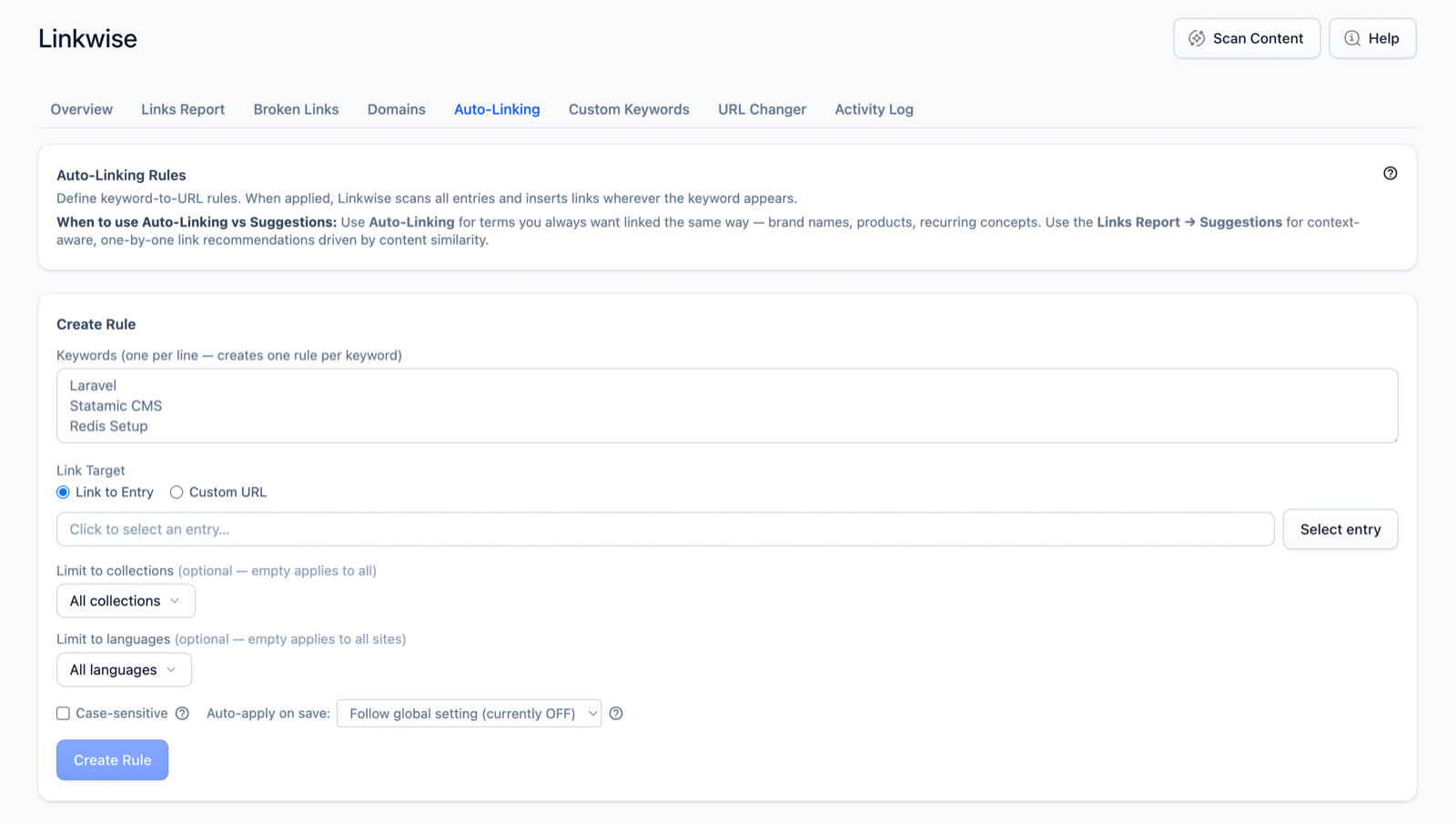
Auto-Linking turns a keyword into a link automatically. Define a rule once — "link the word pricing to /pricing" — and Linkwise applies it across your content, now and going forward.
What it does
Where Suggestions propose links for you to review, Auto-Linking applies them by rule. It's built for the anchors you always want: product names, pillar pages, key landing pages.
How it works
Each rule is a keyword → URL mapping with a set of options:
- Case sensitivity — match
APIexactly, or any casing. - Collection scope — apply the rule only in chosen collections.
- Locale scope — apply it only in chosen sites/languages (multilingual).
- Once per post — link only the first occurrence in an entry, not every one.
- Skip if exists — skip an entry if the keyword is already linked elsewhere in it.
- Auto-apply on save — re-apply the rule whenever an entry is saved.
Applying a rule is retroactive: it rewrites matching text in existing entries, not just new ones.
Two safety guarantees matter:
- Linkwise never overwrites an existing link. If the matched text is already inside a link, the rule skips it — your manual links and other rules are never clobbered.
- Keywords are unique. Creating or editing a rule to a keyword another rule already owns is rejected, so two rules can't fight over the same word.
Auto-apply is opt-in on two levels
Auto-apply-on-save only happens when both switches are on: the global master switch and the rule's own flag.
Flip the master switch in Linkwise's settings at /cp/addons/linkwise/settings, under Auto-Linking → Auto-Apply Rules on Entry Save, or in the config file:
'auto_apply_on_save_enabled' => true, // master switchThen enable auto-apply per rule in the Control Panel. With the master switch off (the default), rules only apply when you click Apply — nothing changes silently on save.
Using it in the Control Panel
- Open Linkwise → Auto-Linking and click New Rule.
- Enter the keyword and target URL, then set scope and options.
- Click Preview to see exactly which entries the rule matches — and how many are already linked or can't be linked — before changing anything.
- Apply a single rule, or select several and Apply Selected as one bulk operation. Large applies run in the background with a progress banner.
- Import or export rules as CSV for bulk setup.
Settings
| Option | Default | Effect |
|---|---|---|
auto_apply_on_save_enabled | false | Master switch for applying rules on entry save. Per-rule flag must also be on. |
open_in_new_tab | false | Add target="_blank" to links Linkwise inserts. |
All other options (keyword, URL, case-sensitivity, scope, once-per-post, skip-if-exists, per-rule auto-apply) are set on the rule in the Control Panel.
Notes & limits
- A rule never touches already-linked text — applying the same rule twice is safe and idempotent.
- Preview before a first apply on a large site, so you know the blast radius.
- Every apply is recorded in the Activity Log, with a snapshot you can use as an audit reference.