Custom Keywords
Custom keywords let you tell Linkwise: "when other entries mention X, suggest a link to this page." They give an entry anchor terms beyond the words in its title.
What it does
Title matching covers the obvious case — but your title doesn't contain every term people use for the topic. Custom keywords add those terms (brand names, product synonyms, internal codenames, common phrasings) so Linkwise suggests the right link even when the title wouldn't match.
How it works
You attach keywords to a target entry. When another entry's content contains one of those keywords, Linkwise suggests linking that text to the target — at a higher priority than the default title match. Custom-keyword matches are always on; they sit alongside title matching, not instead of it.
A few keywords per entry is the sweet spot — they're meant to fill gaps the title leaves, not to match everything.
Using it in the Control Panel
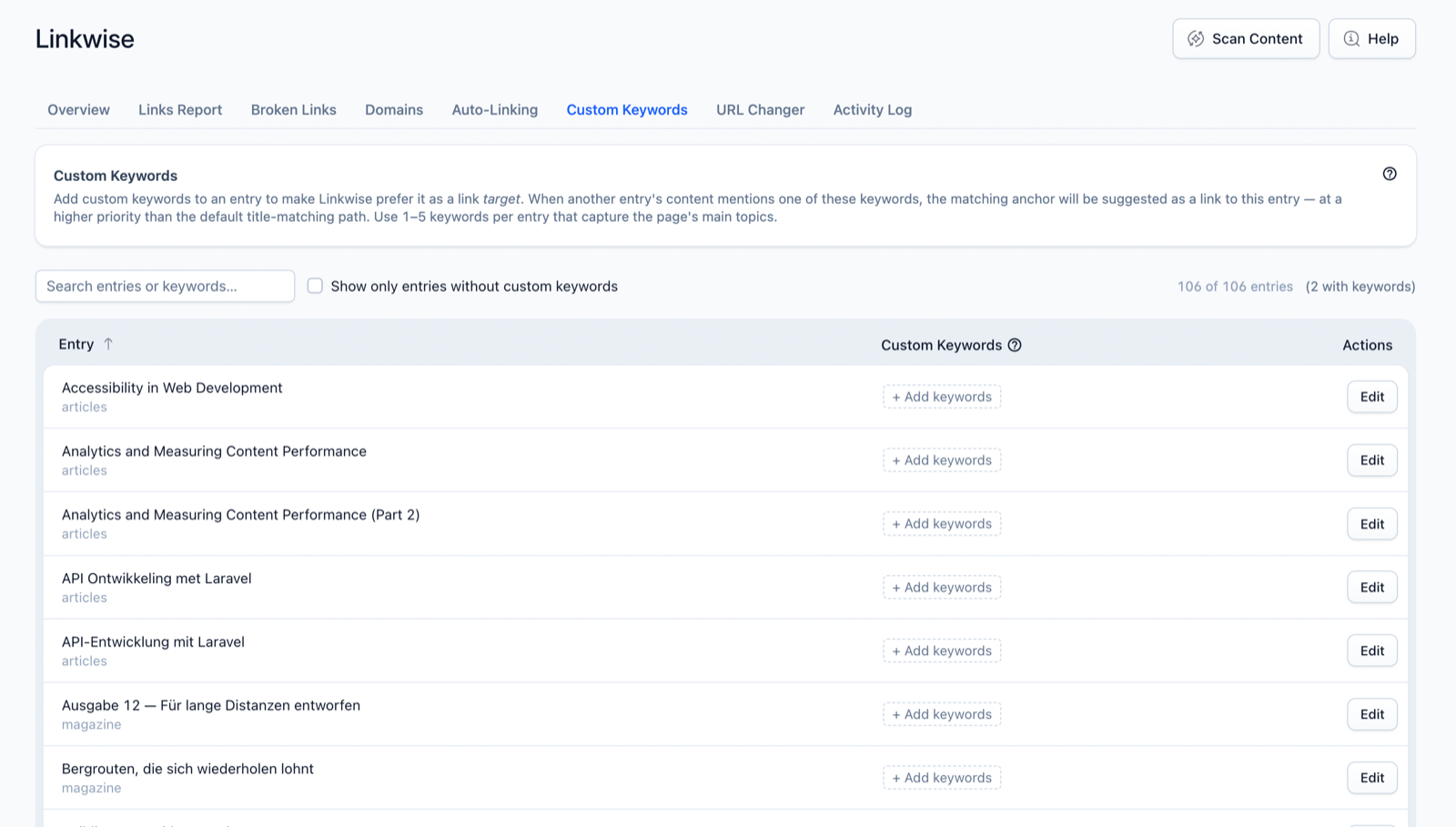
- Open Linkwise → Custom Keywords. Each entry lists its current keywords.
- Click an entry to add or edit its keywords inline. The filter "Show only entries without custom keywords" helps you find gaps.
- Import or export keywords as CSV to bulk-seed from existing keyword research.
Settings
No configuration-file options — custom keywords are managed per entry in the Control Panel, with CSV import/export for bulk changes.
Notes & limits
- Custom keywords influence suggestions — they don't auto-insert links. You still review and insert. (For automatic linking, see Auto-Linking.)
- They raise an entry's priority as a link target; keep them specific so they don't over-suggest.
- Like all suggestions, custom-keyword matches respect locale scope and never target text that's already a link.